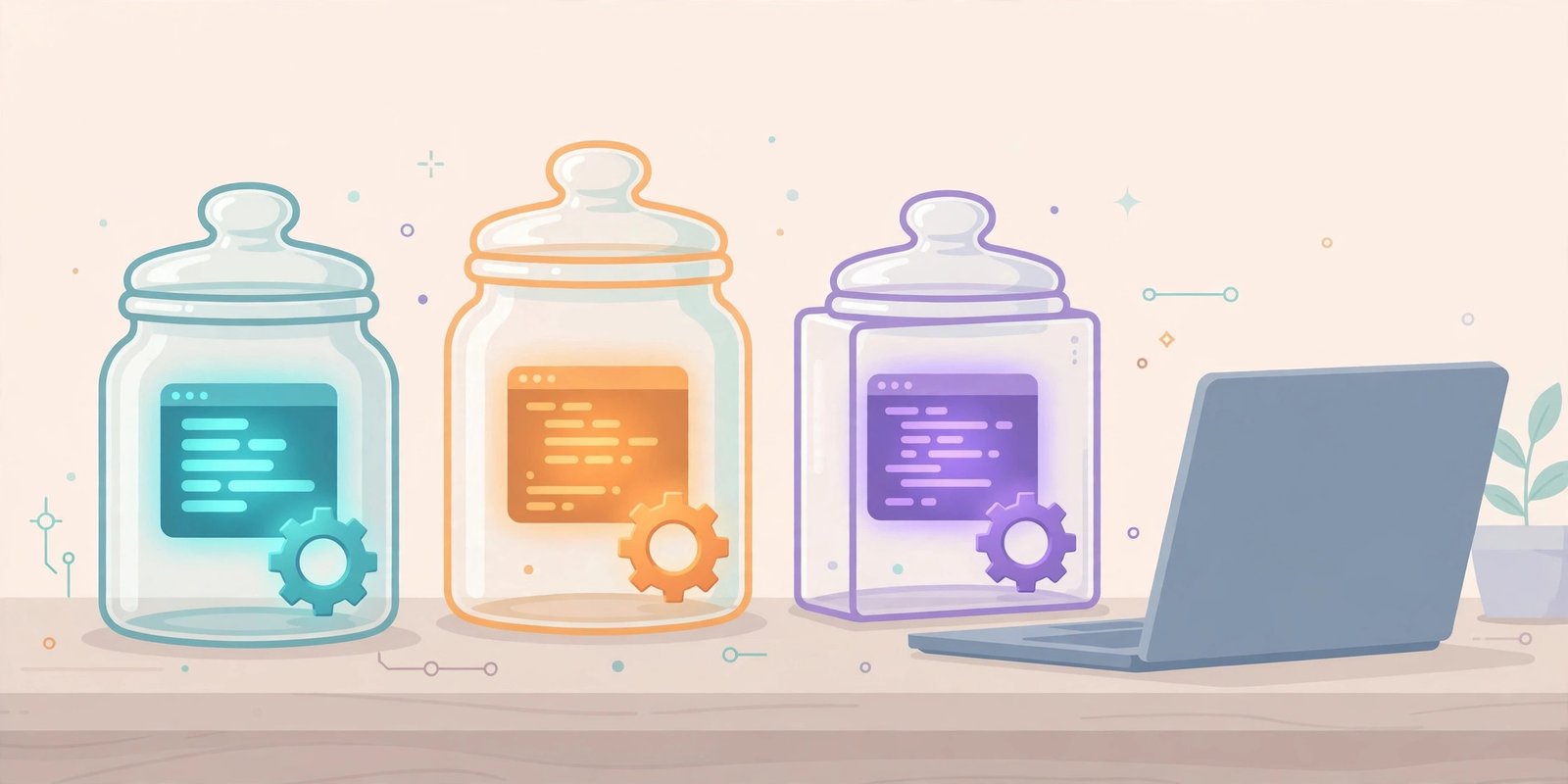
Here is a scene every Python beginner meets sooner or later. Project A needs an older version of a library. You install the newer one for Project B — and Project A stops working. Nothing in your code changed. The libraries simply share one room, and they have started fighting over it. A Python virtual environment (venv) prevents exactly that kind of clash.
A virtual environment ends that fight. It gives every project its own room: its own isolated Python environment (linked to the system interpreter) and its own set of libraries, sealed off from every other project. This Python virtual environment guide explains what a virtual environment really is, how to create one with venv on Windows, and the handful of commands you will use every day afterwards.
Table of Contents
What Is a Python Virtual Environment (venv)?
A virtual environment is just a folder. Inside it sits its own Python interpreter and packages, isolated from the system Python, plus a Lib\site-packages folder where libraries for that one project live. When the environment is “activated”, your terminal quietly agrees: for this session, python and pip mean the interpreter and packages inside that folder, not the system-wide ones. In short, a Python virtual environment is simply a private folder with its own Python and libraries.
That is the whole trick. There is no heavy software, no server, nothing running in the background. Delete the folder and the environment is gone, cleanly, without touching your real Python installation.
Why it matters in practice:
- Projects stop breaking each other. Each project pins the library versions it was built with.
- Your system Python stays clean. Experiments happen inside project folders, not in the one installation everything depends on.
- Sharing becomes exact. A small file (covered below) lets a teammate — or a future you — recreate the same setup in minutes.
- It is the professional habit. Tutorials, employers and open-source projects all assume one environment per project.
Creating Your First Python Virtual Environment (Windows, macOS and Linux)
Work through these steps once and they become muscle memory. Setting up a Python virtual environment is the first practical step. Open Command Prompt inside your project folder (in File Explorer, click the address bar, type cmd, and press Enter — the terminal opens at that folder).
Step 1 — Create the environment
py -m venv venv
The first venv is the module doing the work; the second is the folder name. Naming the folder venv is the convention almost everyone follows, so other programmers instantly know what it is. Creating it takes a few seconds.
Step 2 — Activate it
In Command Prompt:
venv\Scripts\activate
In PowerShell:
venv\Scripts\Activate.ps1
On macOS/Linux: source venv/bin/activate
When activation works, your prompt changes to show (venv) at the start. That little prefix is your confirmation that this terminal now belongs to the project’s private Python.
Step 3 — Check where you are
where python
pip --version
The paths printed should point inside your project folder (…\venv\Scripts\…). If they point to your main Python installation instead, the environment is not active in this window — run the activation command again.
Installing libraries inside the environment
Once your Python virtual environment is active and (venv) is showing, installing works exactly as you already know it: Every install inside an active venv stays confined to that one project.
pip install requests
The difference is where the library lands: inside this project’s venv folder only. Open a second project, activate its environment, and requests will not be there — that absence is the feature working, not a bug. If you have ever hit the “‘pip’ is not recognized” error while setting any of this up, fix that first with our pip error guide, then return here.
The requirements.txt habit
An environment you cannot recreate is only half useful. Two commands make it reproducible:
Save the list of everything installed, with exact versions:
pip freeze > requirements.txt
Recreate the same setup on another machine (or after deleting the folder):
py -m venv venv
venv\Scripts\activate
pip install -r requirements.txt
Keep requirements.txt inside the project and share it with the project. This one small file is the difference between “it works on my machine” and “it works”. Sharing requirements.txt lets anyone rebuild the same Python virtual environment in minutes.
Deactivating and deleting
Leaving an environment is one word:
deactivate
The (venv) prefix disappears and the terminal returns to your system Python. Closing the terminal also ends activation — it never follows you into a new window, which is why re-activating is part of opening a project.
Deleting an environment is just deleting its folder. Nothing is registered anywhere else, so there is nothing to uninstall. If an environment ever feels corrupted, the standard repair is exactly this: delete the folder, recreate it, reinstall from requirements.txt. Beginners coming from the step-by-step Python learning path often find this delete-and-recreate routine removes most “my setup is broken” panic. Because a Python virtual environment is just a folder, deleting it never harms your system Python.
The PowerShell error almost everyone gets once
On PowerShell, activation sometimes fails with a red message saying the script “cannot be loaded because running scripts is disabled on this system”. Windows is not broken; PowerShell is simply cautious about scripts by default. The standard one-time fix, run in PowerShell:
Set-ExecutionPolicy -Scope CurrentUser RemoteSigned
Answer Y, then run the activation command again. This change applies only to your user account, and it is the remedy the official venv documentation itself points to. If you prefer not to change it, use Command Prompt for Python work instead — activation there needs no policy change at all.
Common beginner mistakes with venv
- Creating one environment for all projects. One shared
venvon your desktop recreates the exact problem environments exist to solve. One project, one environment, inside the project folder. - Activating in one terminal, working in another. Activation lasts only in the window where you ran it. VS Code users: select the interpreter inside the
venvfolder (Ctrl+Shift+P → “Python: Select Interpreter”) so its terminal activates the environment automatically. - Committing or copying the venv folder itself. The folder is large and machine-specific. Share
requirements.txt, never the folder. - Installing libraries with the environment inactive. If
(venv)is not showing, the library went to your system Python. Check the prefix before everypip installuntil it becomes habit. - Naming your own file
venv.pyor a library’s name. A file calledrequests.pyin your project will shadow the real library and produce deeply confusing errors. Keep project file names plain and specific.
Frequently asked questions
Is venv included with Python, or do I install it?
A Python virtual environment is built into Python 3.3 and later — nothing extra to install. If py -m venv venv runs, you already have everything. So every Python install already includes the Python virtual environment toolset.
How many environments can I have?
As many as you have projects. Each is an independent folder; ten projects means ten small folders, and they never interfere with each other.
Does a virtual environment slow Python down?
No. It is the same Python, simply launched from a different folder. Programs run at full speed.
Should I create an environment for tiny practice scripts?
For throwaway one-file experiments, it is optional. The moment a script installs its first outside library, give it an environment — that is the line where the habit starts paying for itself.
What is the difference between venv and virtualenv?
virtualenv is an older third-party tool that did this job before Python built the feature in. Today, venv is the standard choice for beginners and most projects; you may still see the older name in older tutorials, and the concepts are identical.
The one-paragraph summary
A Python virtual environment (venv) is an isolated setup with its own Python interpreter and packages for one project, created with py -m venv venv, switched on with an activation command, and confirmed by the (venv) prefix in your prompt. Install libraries only while it is active, record them with pip freeze > requirements.txt, and delete-and-recreate without fear whenever a setup feels broken. Learn this one habit early and an entire category of beginner problems — projects breaking each other — simply never happens to you.