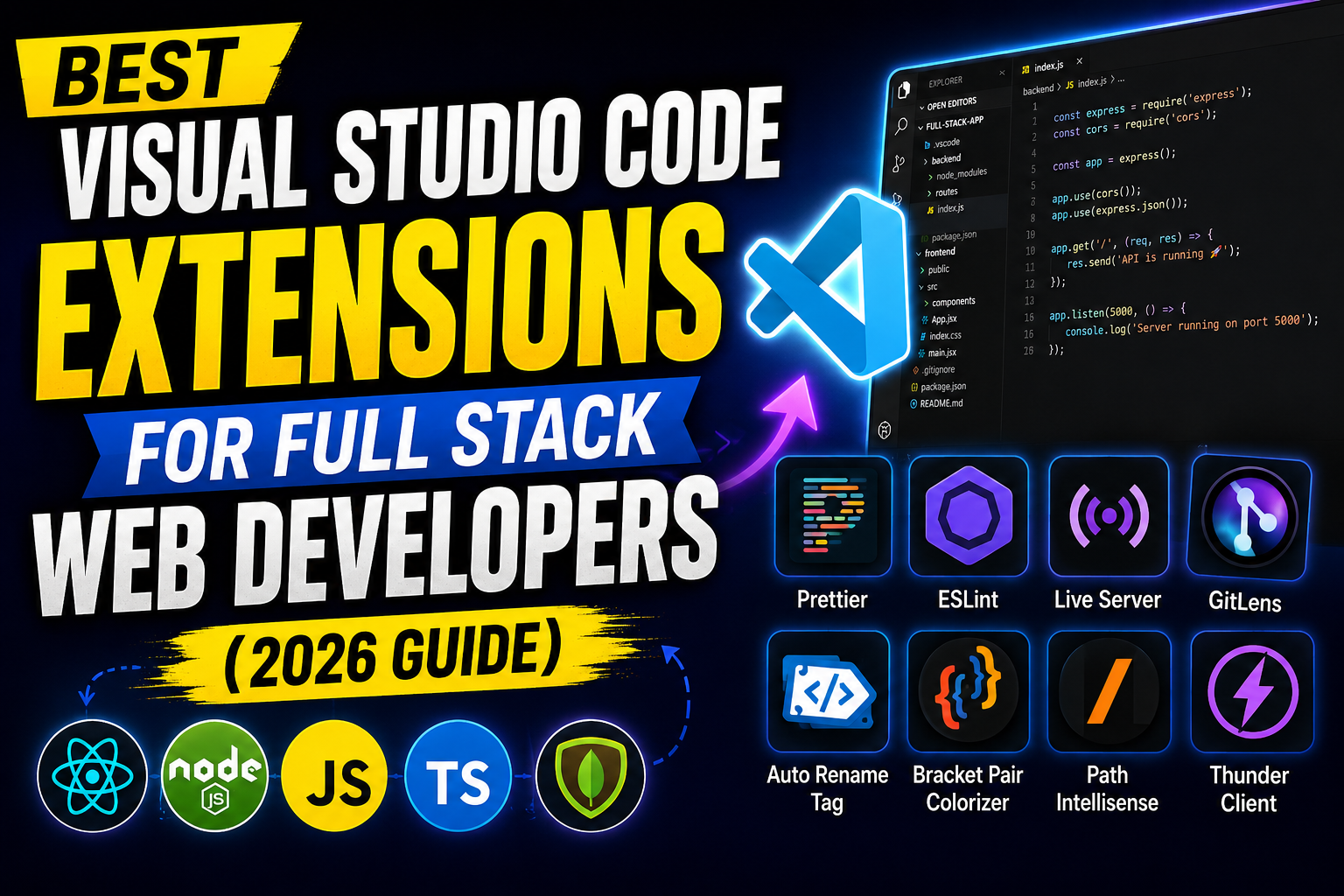
Imagine you are in the zone, building a full stack application. You are writing your React components, styling them with Tailwind CSS, modifying a Node.js API endpoint, and spinning up a Docker container to test your local database. Every time you need to switch tools—opening an external client to test an API, checking a separate terminal for code linting errors, or jumping into Git to see who wrote a buggy line—you lose focus. Context switching is a subtle productivity killer.
Visual Studio Code (VS Code) is highly capable out of the box, but its true power lies in its massive plugin ecosystem. By tailoring your editor with the right tools, you can handle the frontend, backend, database management, and deployment cycles from a single window. Finding the tools that fit cleanly into a multi-layered workflow without slowing down your computer can be challenging.
Quick Summary Box
| Factor | Details |
|---|---|
| Best For | JavaScript, TypeScript, Python, and cloud-native full stack developers |
| Free/Paid | Mostly Free (some premium features or AI tiers require active subscriptions) |
| Difficulty Level | Beginner to Advanced (plug-and-play to custom workspace configurations) |
| Key Benefits | Fewer context switches, instant code formatting, inline error catching, and integrated API testing |
What are VS Code Extensions for Full Stack Developers?
VS Code extensions are modular add-ons that enhance the functionality of the core code editor. For full stack developers, these utilities bridge the gap between distinct layers of software engineering. Instead of installing separate IDEs for frontend code and backend APIs, these plugins add syntax highlighting, intelligent code completion, linting, debugging, and environment management for multiple languages simultaneously.
Why People Use These Extensions
Full stack engineering requires managing multiple moving parts. A typical workday involves jumping between HTML/CSS layouts, backend routing logic, database queries, and deployment scripts.
Developers rely on extensions to automate repetitive workflows. Instead of manually running a formatter command before every Git commit, a properly configured plugin cleans up the code automatically. They provide immediate feedback, catching missing syntax markers or incorrect imports before the code ever hits a production environment or an automated continuous integration pipeline.
Key Features to Look For
- IntelliSense and Autocomplete: Language-specific code predictions that save typing time and prevent syntax errors.
- Inline Diagnostics: Immediate error and warning highlights displayed directly next to the problematic code line.
- Integrated Tooling: The ability to execute database queries, test REST APIs, or manage Git version history natively inside the editor panels.
- Format-on-Save Actions: Standardized code-cleaning configurations that guarantee consistency across diverse teams.
How It Works: The Core Full Stack Extension Setup
Extensions hook directly into VS Code’s internal Extension API. Once active, they run background language servers or process automation scripts that observe your workspace files.
For instance, when you open a project folder containing a backend server file and a frontend client directory, plugins read your configuration files (like .eslintrc or package.json). As you type a database query or an HTML element, the editor analyzes the surrounding logic to offer context-aware suggestions or highlight code errors in real time.
A developer working on an Express server might type a route handler and instantly see available HTTP methods. Simultaneously, a formatting engine works behind the scenes to clean up indented lines the moment they hit save, ensuring code legibility.
The Best Visual Studio Code Extensions for Full Stack Web Developers
1. Code Quality and Formatting Essentials
Prettier – Code Formatter
Prettier removes style debates from your team workflow by taking over your code formatting. It enforces consistent rules for line wrapping, bracket placement, and spacing across JavaScript, TypeScript, JSON, CSS, and HTML.
- Best For: Universal code formatting.
- Limitation: It handles layout styling only; it does not analyze logical errors or flag security bugs.
ESLint
ESLint analyzes your code dynamically to identify issues before runtime. It enforces standard coding practices and flags code anti-patterns, missing variables, or broken module imports.
- Best For: Static code analysis for JavaScript and TypeScript ecosystems.
- Limitation: Requires explicit project configurations to function properly without throwing confusing, false-positive errors.
Error Lens
Error Lens changes how you debug by printing error, warning, and informational diagnostics inline, right at the end of the offending line of code.
- Best For: Quick debugging without constantly checking the separate “Problems” panel.
- Limitation: Can look cluttered if a project has hundreds of legacy errors or warnings.
2. Frontend and UI Development
Tailwind CSS IntelliSense
If you build user interfaces with Tailwind CSS, this extension provides intelligent autocomplete suggestions, class name previews, syntax linting, and hovering previews for CSS properties.
- Best For: Speeding up utility-first CSS styling workflows.
- Limitation: Irrelevant if your stack relies on raw CSS, Sass, or CSS-in-JS solutions.
Path Intellisense
Path Intellisense autocompletes file paths as you type module imports. Typing import Button from './components/' opens a dropdown showing every component file available in that folder directory.
- Best For: Navigating complex, nested frontend repository structures.
- Limitation: Occasionally conflicts with custom path aliases configured in specialized frameworks unless manual configuration paths are added.
3. Backend, API, and Database Management
Thunder Client
Thunder Client is a lightweight, clean REST API client that runs completely inside VS Code. It serves as an alternate option to opening heavy external applications like Postman when testing backend routes.
- Best For: Rapid endpoint validation and managing environment variable testing.
- Limitation: The advanced team-sharing and automation features require moving to a premium tier.
Docker
The official Docker extension simplifies creating, managing, and debugging containerized applications. It provides single-click options to inspect running containers, view system logs, and modify container environment files.
- Best For: Devops integration and containerized full stack architectures.
- Limitation: Requires the actual Docker Desktop daemon running natively on your local system to perform any commands.
4. Git and Version Control
GitLens
GitLens exposes the Git history hidden inside your repository directly onto your active workspace. It features line-by-line blame annotations, a history visualizer, and branch comparisons.
- Best For: Visualizing code authorship and understanding why a legacy code file was written a certain way.
- Limitation: The sheer number of visual popups, hover cards, and feature menus can feel overwhelming to entry-level developers.
Practical Use Cases
- Team Code Standardization: A team of front and backend engineers can commit code to a single repository without running into Git merge conflicts over spaces, tabs, or bracket placements by enforcing shared Prettier configurations.
- Microservices Development: A developer managing multiple distinct local API containers can use the Docker plugin to view simultaneous system log outputs alongside their live routing files.
- Debugging Legacy Repositories: When debugging older code bases, combining Error Lens with GitLens allows you to instantly see what line is failing and trace back the original commit details to see what Jira ticket or feature request prompted that code change.
Step-by-Step Guide: Optimizing Your Workspace
Setting up extensions effectively requires modifying a few default configuration settings to prevent your editor from running slowly.
Step 1: Install the Required Core Extensions
Open the Extensions view panel using Ctrl+Shift+X (or Cmd+Shift+X on macOS), search for Prettier, and select Install. Repeat this step for ESLint and Error Lens.
Step 2: Configure Global Format Settings
To automate your layout formatting, configure your editor settings file. Open your command palette (Ctrl+Shift+P or Cmd+Shift+P) and look up Preferences: Open User Settings (JSON). Add the following parameters:
JSON
{
  "editor.formatOnSave": true,
  "editor.defaultFormatter": "esbenp.prettier-vscode",
  "editor.codeActionsOnSave": {
    "source.organizeImports": "always",
    "source.fixAll.eslint": "always"
  }
}
Step 3: Lower Error Lens Visual Clutter
The default Error Lens styling can appear aggressive. You can modify its appearance by entering your settings layout and reducing the background color opacity to roughly 15%, ensuring the alerts remain highly readable without obscuring your actual code workspace text.
Benefits
- Improved Productivity: Writing code, evaluating code errors, and testing backend routes in one place reduces time wasted switching windows.
- Fewer Syntax Mistakes: Autocomplete utilities prevent typos across deep path structures or vast CSS libraries.
- Clean Git History: Automated code formatting means commits only highlight actual code logic modifications, rather than random whitespace changes.
Limitations
- Increased Memory Footprint: Running dozens of language extensions simultaneously increases system RAM usage, which can impact performance on mid-range laptops.
- Extension Conflicts: Running overlapping formatting or code snippets engines can cause competing updates, leading to strange indentation behaviors until resolved.
Pros and Cons Matrix
| Extension Name | Core Strength | Notable Weakness |
|---|---|---|
| Prettier | Completely automates clean formatting | Does not check logical syntax errors |
| ESLint | Catches bugs and anti-patterns early | Requires manual config maintenance |
| Error Lens | Shows clear diagnostics instantly | Can clutter text on dense monitors |
| Thunder Client | Clean, fast API checking tool | Advanced testing tools require payment |
| GitLens | Deep visibility into code history | Interface can feel cluttered at first |
Comparison Table: Built-in VS Code vs. Extension Upgrades
| Task Management | Default VS Code Experience | Upgraded Extension Alternative |
|---|---|---|
| Checking Git History | Basic terminal output log view | GitLens: Visual charts and inline blame text |
| API Endpoint Testing | Relying on curl scripts or external tools | Thunder Client: Direct UI panel request building |
| Handling Code Errors | Checking indicators in the Problems panel | Error Lens: Instant inline color text alerts |
Best Alternatives to Complex Extensions
If your development computer slows down under a heavy load of plugins, you can swap heavy extensions for lightweight alternatives:
- REST Client vs. Thunder Client: If you prefer text-based setups to visual interfaces, the REST Client extension reads simple
.httpfiles to test endpoints using minimal background memory. - Native VS Code Git vs. GitLens: Turning off GitLens and relying instead on VS Code’s built-in Source Control tab offers simple version tracking without high RAM consumption.
Common Mistakes Users Make
- Over-Installing Plugins: Installing too many extensions can slow down your editor. If you notice a delay when saving files, evaluate your active extensions list and disable items you rarely use.
- Ignoring Workspace Configs: Relying solely on global plugin configurations instead of committing explicit project files (like a shared
.prettierrc) can cause code layouts to shift unpredictably when collaborating with other team members.
Frequently Asked Questions
1. Will installing too many VS Code extensions slow down my development machine?
Yes. Running many language servers simultaneously consumes system memory. Keep your active plugin collection focused on the specific languages required for your active projects.
2. Can I use Prettier and ESLint together without them breaking code formatting?
Yes, but they require proper configuration. Use the eslint-config-prettier package to disable any conflicting formatting rules within ESLint, letting Prettier manage style while ESLint handles code logic analysis.
3. Is Thunder Client fully free for commercial project development?
Thunder Client offers a functional free tier for single developers. Advanced collaboration and script testing capabilities require a premium tier.
4. How do I sync my active extensions list across different computers?
You can use the built-in Settings Sync feature in VS Code. Sign in using your GitHub or Microsoft credentials to keep your themes, settings, and extension lists synchronized across devices.
5. Why isn’t Prettier formatting my code when I save files?
Ensure that your editor settings have "editor.formatOnSave": true active and that Prettier is designated as your default file formatter within your settings workspace configuration.
6. Can I disable specific extensions for particular projects?
Yes. VS Code allows you to enable or disable extensions globally or limit them strictly to your active local workspace folder.
7. Does GitLens send my private code to external cloud environments?
No. GitLens processes version control details locally on your machine by interfacing with your project’s local .git directories.
8. What is the fastest way to find a broken extension causing performance issues?
Run the Help: Start Extension Bisect utility from your command palette. This tool disables your extensions one half at a time to isolate which plugin is impacting performance.
9. Why are Tailwind CSS autocomplete boxes failing to appear in my components?
The extension requires a valid configuration file (like tailwind.config.js) to exist within your project folder to read and index your specific class properties.
10. Do I need an external extension to manage SSH server file updates?
No. You can use Microsoft’s official Remote – SSH plugin pack to open folders on remote cloud servers directly inside your local VS Code window.
Final Thoughts
Building a productive VS Code environment requires balancing helpful features against editor performance. The best visual studio code extensions for full stack web developers are the ones that integrate seamlessly into your day-to-day workflow without adding unnecessary visual noise or slowing down your system.
If you are developing complex web applications with multi-layered backends and complex database interactions, using plugins like ESLint, Error Lens, and Thunder Client will save you hours of unnecessary troubleshooting. On the other hand, if your daily work focuses primarily on simple static websites, keeping your extension footprint lightweight will keep your editor fast and responsive. Focus on adding utilities that solve your immediate workflow bottlenecks, and keep your workspace lean.